Org Explorer: Administrator Guide

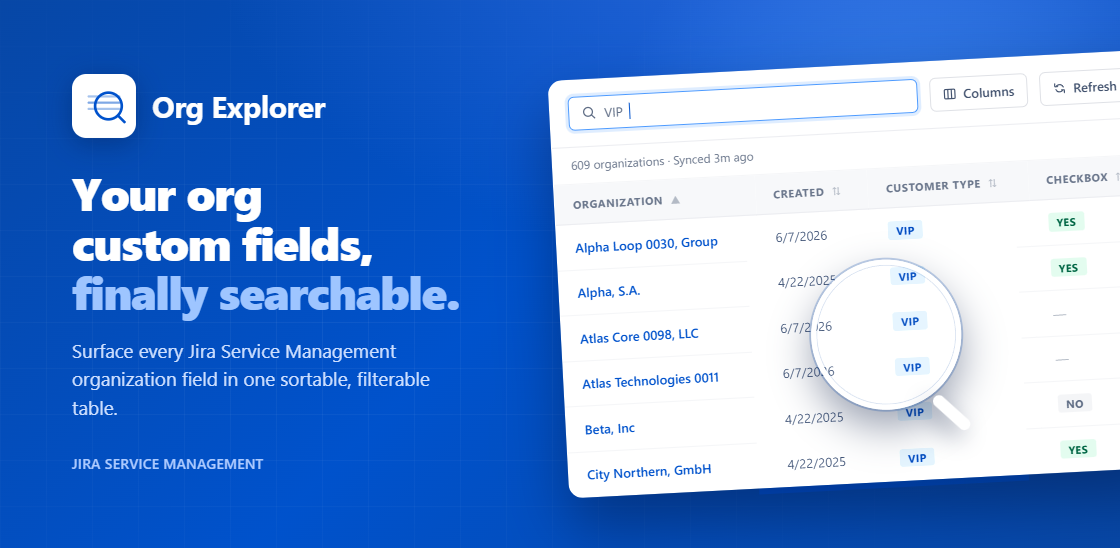
Zero configuration. Org Explorer automatically builds a high-performance organisation index and surfaces all organisation custom fields in a single table on your Jira Service Management project page.
Looking for help using the app day-to-day? See the User Guide.
The JSM data layer you've been missing
Jira Service Management lets you add custom fields to organisations (for example: tier, contract type, renewal date, account owner). Org Explorer brings all that data into a single, fast table so you can view, search and sort across records without opening them individually.
- Search & Sort Power: Instant cross-field search matches organisation names and visible columns simultaneously. Click column headers to sort any value ascending or descending.
- Smart UI Formatting: See every custom field as a column (text, boolean, multi-select, date) with type-appropriate formatting such as lozenges, tags, and localised dates.
- Always Up to Date: Automated background sync keeps data current on active commercial paid licences, backed by smart caching for instant page loads. Evaluation installs can use the manual Refresh button to fetch the latest data on demand.
- Global & Secure: Fully localised in English, German, French, Spanish and Japanese. Data stays secure behind native JSM agent-only permissions.
Install
Install Org Explorer from the Atlassian Marketplace. No configuration is required. After installation the app automatically begins building the organisation index for each project — this initial sync may take a few minutes on instances with a large number of organisations. No administrator action is needed; the app displays progress and updates the table automatically once complete.
Org Explorer is available in every JSM project by default. If a particular project doesn't need it — for example, one that doesn't use organisations — a project admin can turn it off for that project using the Disable in this project control inside the app itself. You'll be asked to confirm before it takes effect.
Once disabled, everyone in that project sees a simple message explaining that Org Explorer is turned off, and both scheduled and manual syncing stop completely — the project consumes no further sync quota while it's disabled. Previously synced data isn't deleted, it's just not shown or refreshed. A project admin can re-enable Org Explorer at any time from the same screen, and live data returns as soon as it's back on.
This control is per project — there's no site-wide switch to turn Org Explorer off everywhere at once. Each project admin manages their own project independently.
How syncing works
Org Explorer maintains an index of your organisations and their custom field values for each JSM project. Understanding the sync model helps set expectations around data freshness.
Automatic background sync
An automated process runs in the background across all projects where Org Explorer is installed. Syncs run at least daily, and more frequently when recent changes are being detected. Changes to organisations — such as updated custom field values, new organisations added to a project, or changes to organisation membership — will be reflected after the next scheduled sync completes. Automated background sync is available on active commercial paid licences only; evaluation installs can view and search organisations and use the manual Refresh button to fetch the latest data on demand.
For organisations that appear in multiple projects, a change detected in one project will typically be reflected across all affected projects within an hour, without waiting for each project's own sync cycle.
Manual refresh
The Refresh button triggers an immediate sync for the current project, always pulling the latest data directly from Jira. The sync runs in the background: clicking Refresh returns immediately and the app shows a progress indicator while the index is being rebuilt. You do not need to keep the page open — the table updates automatically once the sync completes.
Refresh cooldown
To avoid placing unnecessary load on your Jira instance, the time before another manual refresh is allowed increases progressively when no changes are detected. If the index is already up to date, the cooldown can extend to up to 30 minutes. It resets immediately any time a real change is found. The current sync status and the time of the last successful sync are always visible in the app header.
Sync & quota panel
Click the info icon next to the sync status to open a panel with more detail on syncing for the current project:
- Last sync: when the most recent sync completed, or that one is currently running.
- Next sync: an estimate of when the next automatic sync will run. This adapts to activity — projects with no recent changes sync less often, and syncing returns to a more frequent schedule as soon as a change is detected.
- Refresh cooldown: whether manual Refresh is currently on cooldown, and roughly how long until it's available again.
- Manual sync allowance: how much of the installation's daily manual-sync allowance has been used, and when it resets. Larger licensed installations receive a larger daily allowance.
This panel is available to any user, not just administrators.
Licence requirements
Background sync is a Forge compute-intensive feature and is included on active commercial paid licences only. Evaluation and trial installs can browse organisations and use the manual Refresh button, but scheduled background sync is disabled.
Chief Technology Solutions reserves the right to adjust sync quotas or suspend automated sync for any installation that places unreasonable load on the platform. Affected customers will be notified.
Reducing your sync quota usage
Tip: if your instance is approaching its sync quota, disable Org Explorer on any projects that don't actively use organisation data — see the Install section above. Each disabled project stops consuming sync quota entirely, so this is the most direct way to bring usage down without affecting the projects that actually rely on it.
Licence and trial states
- Trial: organisation data is loaded directly in your browser rather than kept in sync automatically. A banner explains this and offers a link to upgrade, plus an "I've upgraded — activate now" option once you've purchased a licence.
- Licence still activating: if you select "activate now" shortly after upgrading and the new licence hasn't finished taking effect yet, you'll see a brief "still updating, try again shortly" message rather than an error. The upgrade is also detected automatically in the background, so clicking through isn't required.
- Non-commercial licences (for example sandbox or community installs): a banner explains that background sync isn't available for this licence type; you can still browse and search organisations and use manual Refresh.
- No valid licence: a simple message explains that a licence is required and directs you to speak with your Jira administrator.
Permissions
Org Explorer is accessible only to JSM agents with access to the project. It does not expose any data to customers or users outside your project's agent permission scheme. No additional permission configuration is required after installation.
Data and privacy
All data is processed and stored within Atlassian Forge. No organisation data is sent to external systems. See the Legal & Privacy page for full details.